
In this article, we will provide a step-by-step guide on how to update Python. Whether you are a beginner or an experienced Python user, following these steps will ensure that your Python installation is always up-to-date and running smoothly.
If you don't know Python, you can start with a brief introduction to Python
Ever wonder how to update Python on Windows, follow this simple step-by-step guide and you´ll have the latest version in no time.
- Head to python.org

-
Click on
Downloadsand selectWindows -
The website will display all Python releases for Windows (Stable and Pre-release). If you are looking to experiment with some features not released on a stable version, select the
Pre-Releaseor, and most recommended, click onLatest Python 3 Releasehyperlink just belowPython Releases for Windows -
A new page will open and display all the information regarding the latest release (at the time of writing this article, latest version is 3.11.1) and scroll down until you find the following table

-
Select the Windows Installer (64-bit) option to start download and once finished, execute the installer.
-
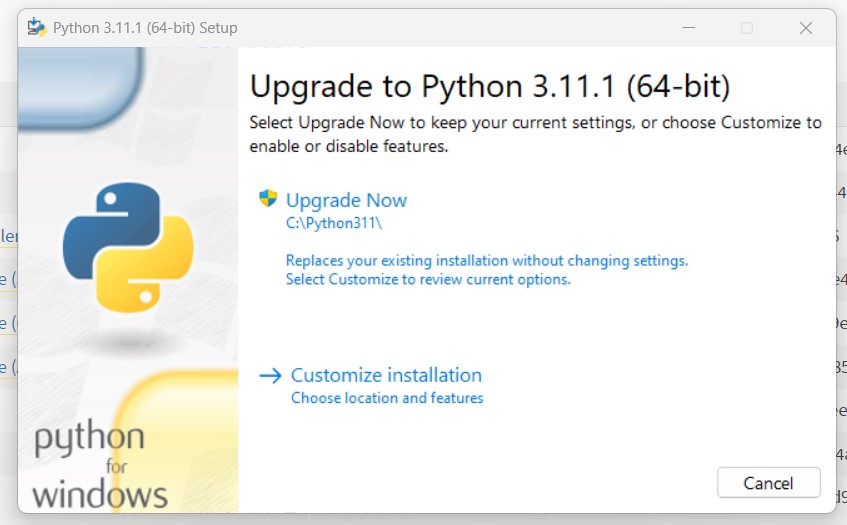
The installer will detect, if you have already a Python version installed and prompt if you wish t update the current version to the one provided by the installer. Select
updateand gives permissions to the installer when asked to.
Python is a widely-used programming language that is popular among developers and data scientists alike. It is known for its simplicity, versatility, and strong community support. If you are a Python user, it is important to keep your installation up-to-date in order to take advantage of the latest features and security patches.
You can check the following article about how to update python version to learn how to update python on different operative systems.
To learn more about python and what you can do with this language you can check the blog at 4Geeks. Hope you enjoyed the reading and keep on the Geeks side!